
Photo to Coloring Page Converter
Turn any photo into a printable coloring page in seconds. Upload a picture of your pet, your family, a toy or a flower, adjust the lines, then print it or download it. This free picture to coloring page tool works in your browser, and your photo never leaves your device.
On this page: The tool Examples How it works Best photos Settings by age Ideas FAQ
See How a Picture Becomes a Coloring Page
A cartoon dog, cat, rose and toy car, each turned into a coloring page by this tool. Camera photos work too: the tool picks the best mode for your picture, and you can switch it.
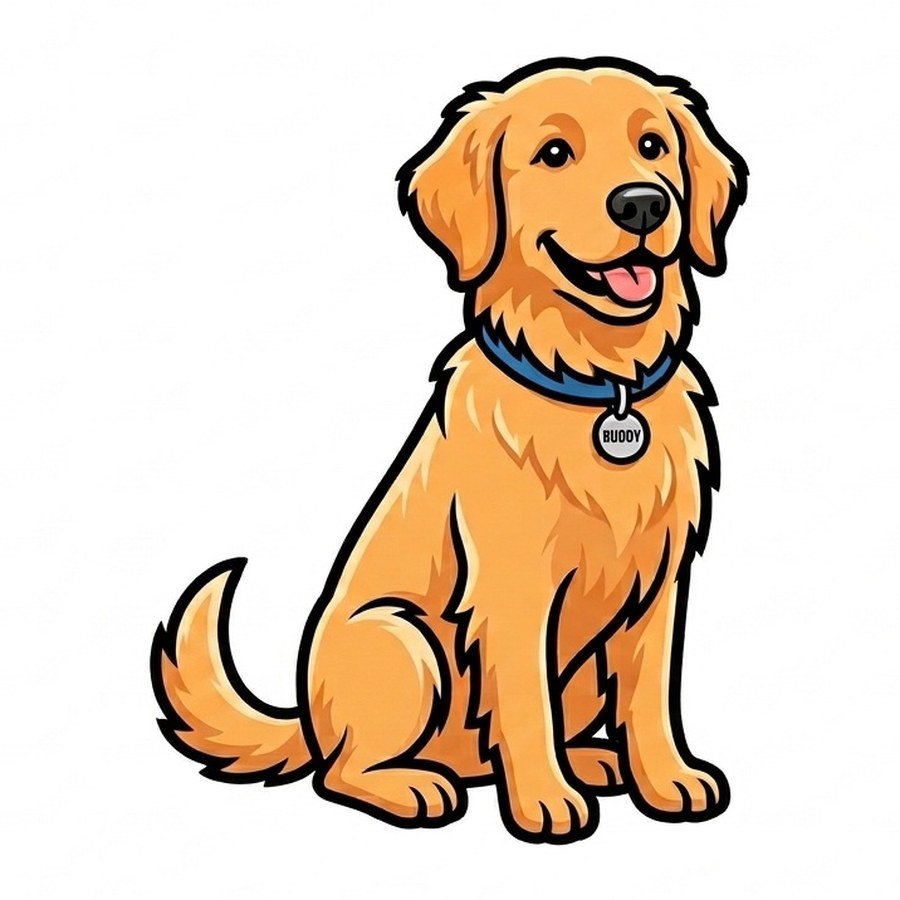
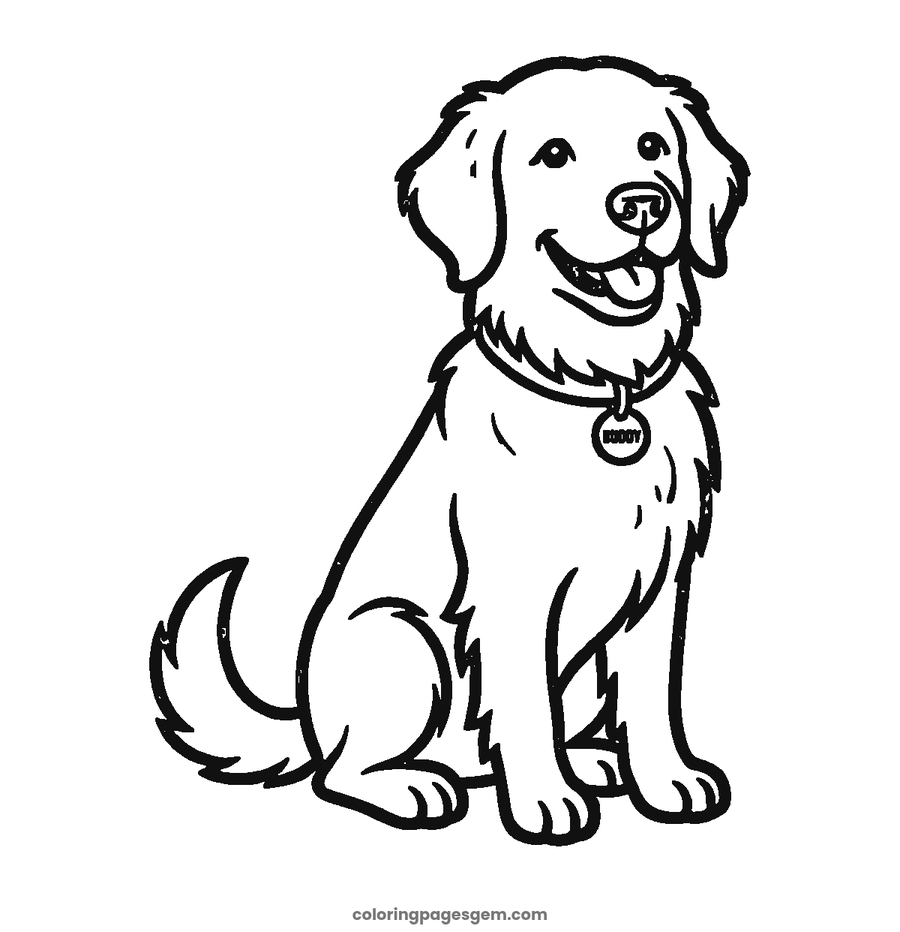
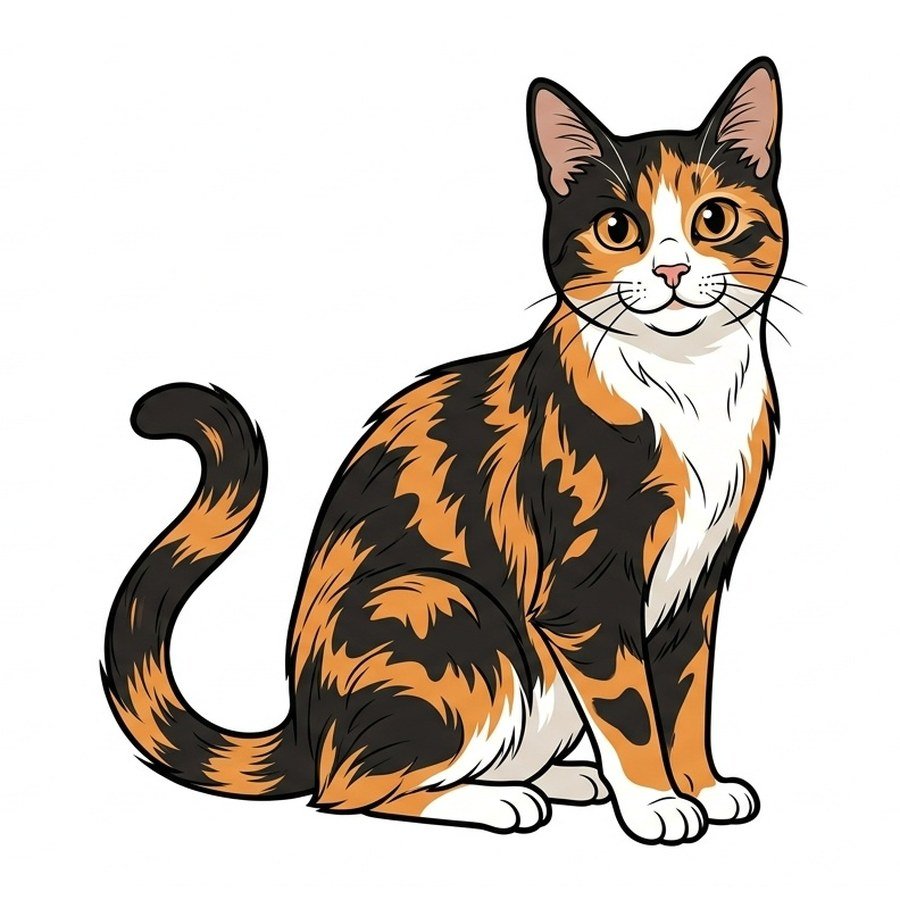
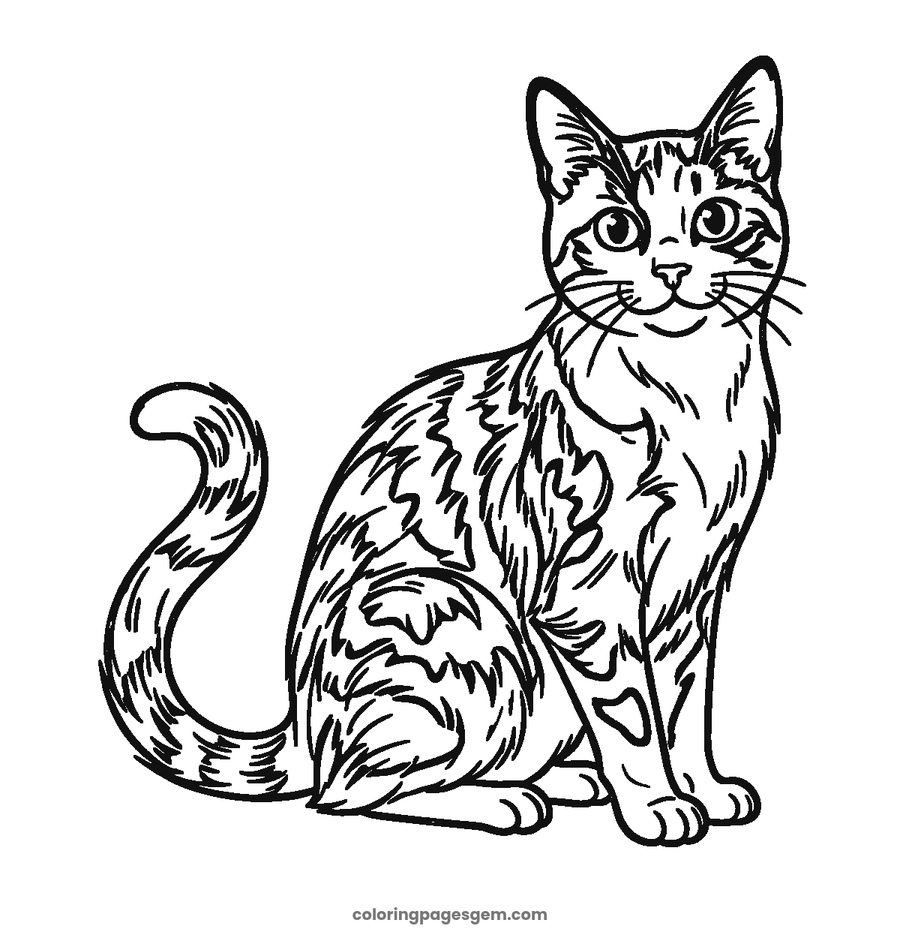
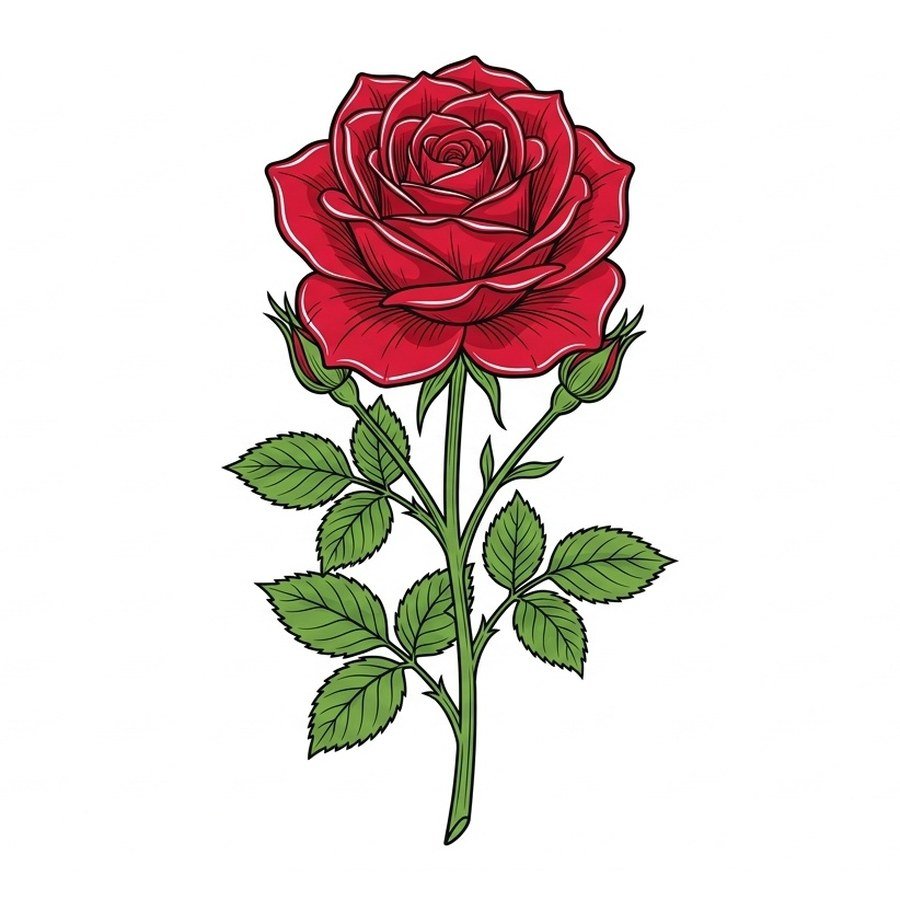
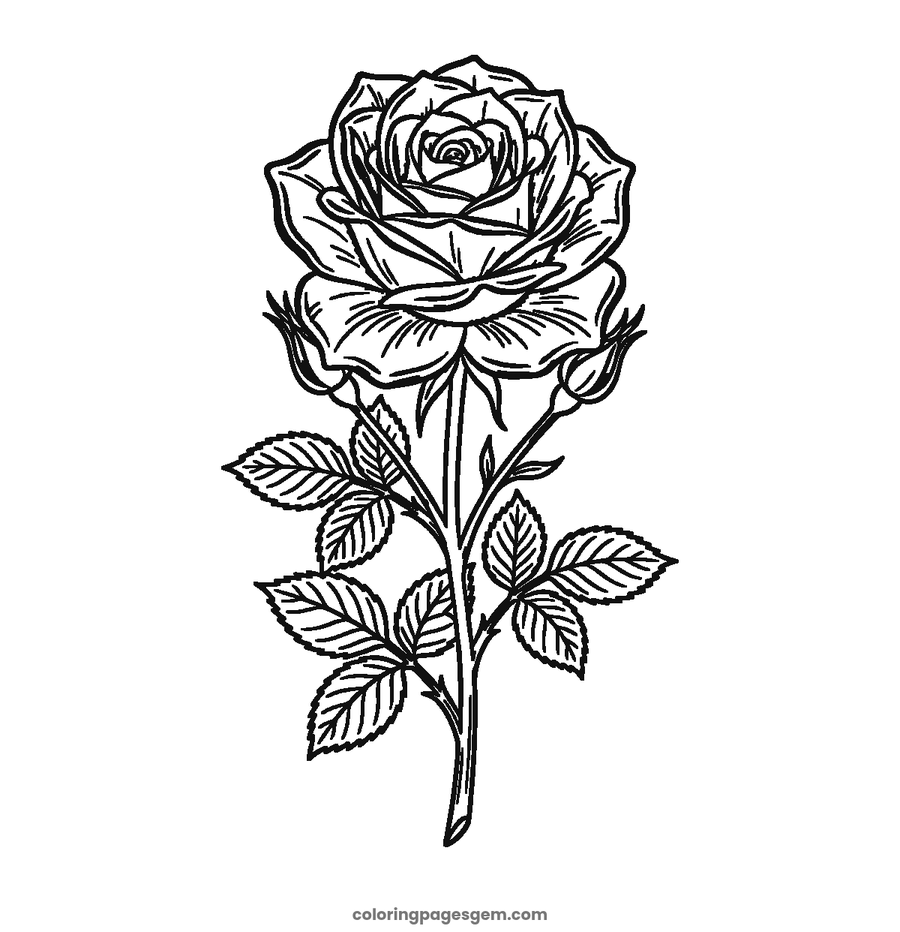
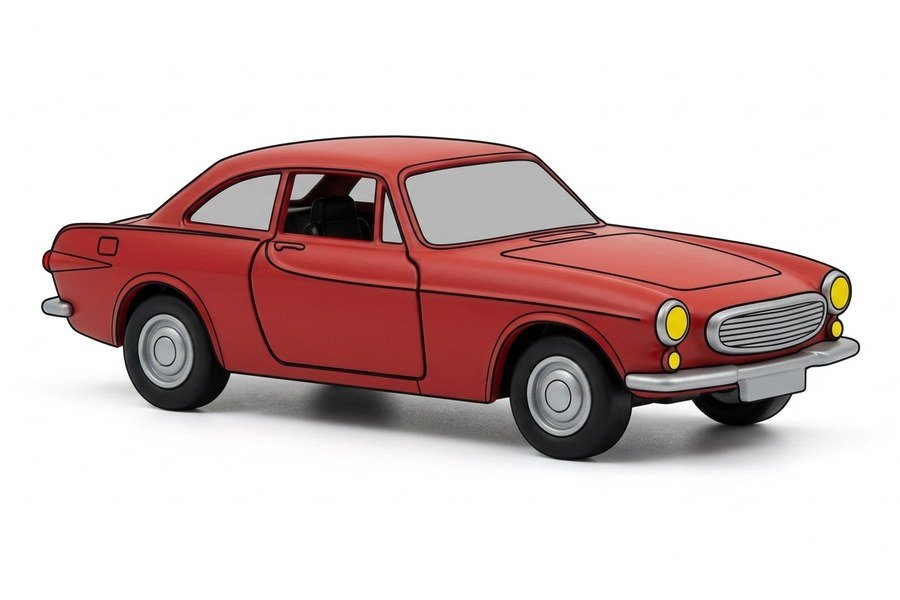
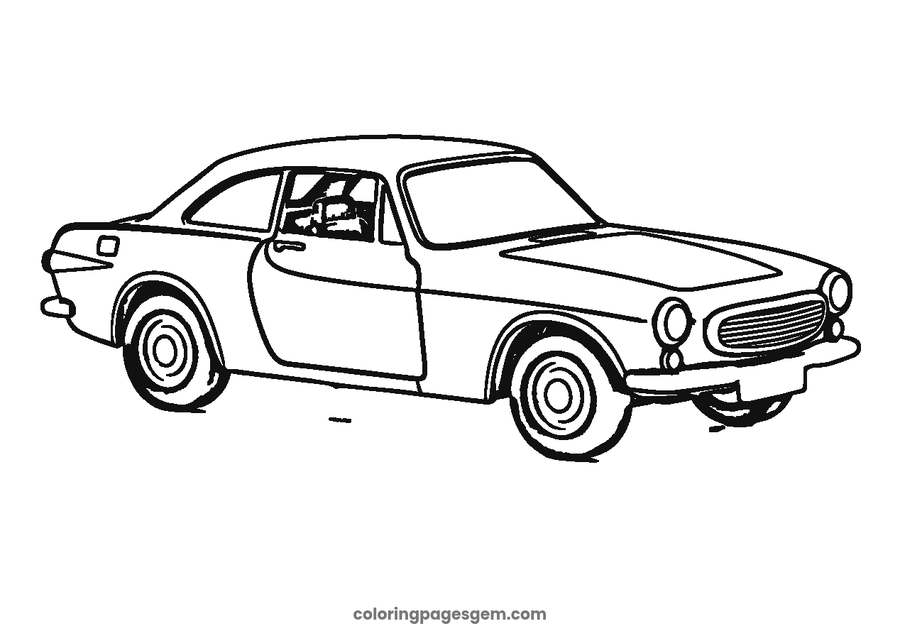
How to Turn a Photo Into a Coloring Page
- Choose a photo. Click "Choose a photo" or drag a picture onto the box. Clear, well-lit photos with a simple background work best.
- Pick the picture type and a quick style. Leave it on "Photo" for pictures taken with a camera, or choose "Drawing or cartoon" if your picture already has dark outlines. "Simple" gives bold, easy lines for young children, and "Detailed" keeps more of the picture for older kids and adults.
- Fine-tune it. Use the sliders to add or remove lines, clean up specks and make the lines thinner or bolder. The coloring page updates as you move them.
- Print or download. Press Print to print on letter or A4 paper, or Download PNG to save the picture.
What Is a Photo to Coloring Page Converter?
A photo to coloring page converter finds the edges in a picture and turns them into clean black lines on a white page. The result looks like a line drawing that you can print and color with crayons, colored pencils or markers. People also search for this as a picture to coloring page tool, a photo to line drawing converter or a photo to outline maker. They all do the same job: they turn your own picture into something you can color.
Our converter works instantly in your web browser. You do not need an app, an account or a download, and nothing is uploaded. If you would rather start with ready-made pages, browse our free animal coloring pages, unicorn coloring pages or dinosaur coloring pages.
Which Photos Work Best?
| Type of photo | Result | Tip |
|---|---|---|
| Pets on a simple background | Excellent | Crop close. For furry pets, try Simple. |
| Plush toys and teddy bears | Very good | Choose Simple for a bold, clean outline. |
| Cartoons and clip art with dark outlines | Excellent | The tool switches to Drawing or cartoon mode for you. |
| Toys, flowers and objects | Excellent | Photograph them on a plain table or wall. |
| Children's drawings and cartoons | Excellent | These already have clear lines. |
| Portraits | Good | Use a plain background and the Simple style. |
| Group or busy photos | Fair | Crop to one subject and lower the Detail slider. |
| Landscapes and cityscapes | Fair | Many small details, so use Simple and a thicker line. |
| Dark, blurry or low-light photos | Poor | Use a brighter, sharper photo. |
Best Settings for Every Age
| Age | Quick style | Why |
|---|---|---|
| Ages 2 to 4 | Simple (for kids) | Thick lines and few details are easier for small hands. |
| Ages 5 to 8 | Balanced | A good mix of detail and big shapes to color. |
| Ages 9 and up, and adults | Detailed | Fine lines suit colored pencils and gel pens. |
Photo to Coloring Page on iPhone, Android and Computer
On a phone or tablet: tap Choose a photo, then pick a picture from your photo library or take a new one. When you like the result, tap Print to send it to a printer, or tap Download PNG and find the file in your Downloads or Files app.
On a computer: drag a photo onto the box or click Choose a photo. Press Print and your browser's print window opens, or use Download PNG and print the image from any program.
Ideas for Your Photo Coloring Pages
- Pet portraits: make a page of your dog or cat, then try our dog coloring pages and cat coloring pages for even more.
- Birthday party favors: guests color a picture of the birthday child, or you can add a personalized name page.
- Children's drawings: turn a messy drawing into a clean page they can color again.
- School projects: use photos of a school trip, the school mascot or the class pet.
- Gifts and cards: grandparents love a coloring page of the kids or the family pet.
- Holiday fun: photograph the tree or the decorations, then add our Christmas coloring pages.
- Travel memories: turn a favorite landmark photo into a page to color on the journey home.
- Color it on a screen: prefer no printer? Try the free Color Online tool on our ready-made pages.
Your Photos Stay on Your Device
Privacy matters, especially with pictures of children and family. This converter runs entirely in your web browser. Your photo is not uploaded, saved or shared, and we never see it. Please only use photos that you have the right to use.
Frequently Asked Questions
Is the photo to coloring page converter free?
Yes. It is completely free, with no sign-up, no watermark you cannot remove and no limit on how many photos you convert.
How do I turn a photo into a coloring page?
Choose a photo, pick a quick style such as Simple or Detailed, adjust the sliders if you like, then press Print or Download PNG. The whole process takes less than a minute.
Is my photo uploaded or saved?
No. Your photo is processed inside your own web browser and never leaves your device. We do not receive, store or see your pictures.
Does it use AI?
It uses edge detection, a classic image technique that finds the outlines in your photo, instead of AI image generation. That is why it works instantly and keeps your photo private. The result is an outline of your real photo, so it looks like a line drawing, not a cartoon.
What kinds of photos work best?
Clear, well-lit photos with one main subject and a plain background work best, such as a pet on a sofa, a toy on a table or a flower close up. Children's drawings and cartoons also turn out very well.
Why does my coloring page look messy?
Busy backgrounds, blurry photos and furry or patterned subjects create lots of lines. Try the Simple style, lower the Detail slider, raise Smoothness or Clean up specks, or crop the photo closer to your subject.
What is the difference between Photo and Drawing or cartoon?
Photo mode finds the soft edges in a camera photo and draws a clean outline around them. Drawing or cartoon mode is for pictures that already have dark lines, such as a child's drawing, and it keeps those lines instead of tracing around them.
Can I turn a child's drawing into a coloring page?
Yes. Take a photo of the drawing on a white surface with good light, then upload it. Thick pencil, marker or crayon lines turn into a clean coloring page.
What file types can I upload?
JPG, PNG and WEBP photos work, and most modern browsers also open AVIF. If your phone saves photos in HEIC format, choose the photo from your phone's photo library, which converts it automatically, or save a JPG copy first.
What size can I print it at?
The picture is saved at up to 1500 pixels on its longest side and fits standard letter and A4 paper. Use Print, or download the PNG and print it from any program.
Can I color it online?
You can print it, or color the downloaded picture in any drawing app. To color our own ready-made pages on a screen, try our free Color Online tool.
Can I make a page with my child's name too?
Yes. Our free name coloring page maker makes a personalized page with bubble letters, patterns and fun themes.
More Free Coloring Pages and Tools
Make a page from your own photo
Free, private and ready to print in seconds.
Choose a Photo